Connect Search Console
Open Search demand in Setup & method. Enter the exact Search Console property, including the domain property prefix or the full URL prefix shown by Google. Use the service account address displayed in the portal, grant the access requested by the checklist, and request a check. Never upload a private key or share your personal password.
Wait for the check result. Check requested is not verified access. Review the property and each checklist result before continuing. Access to a different property does not verify the property selected for this brand.
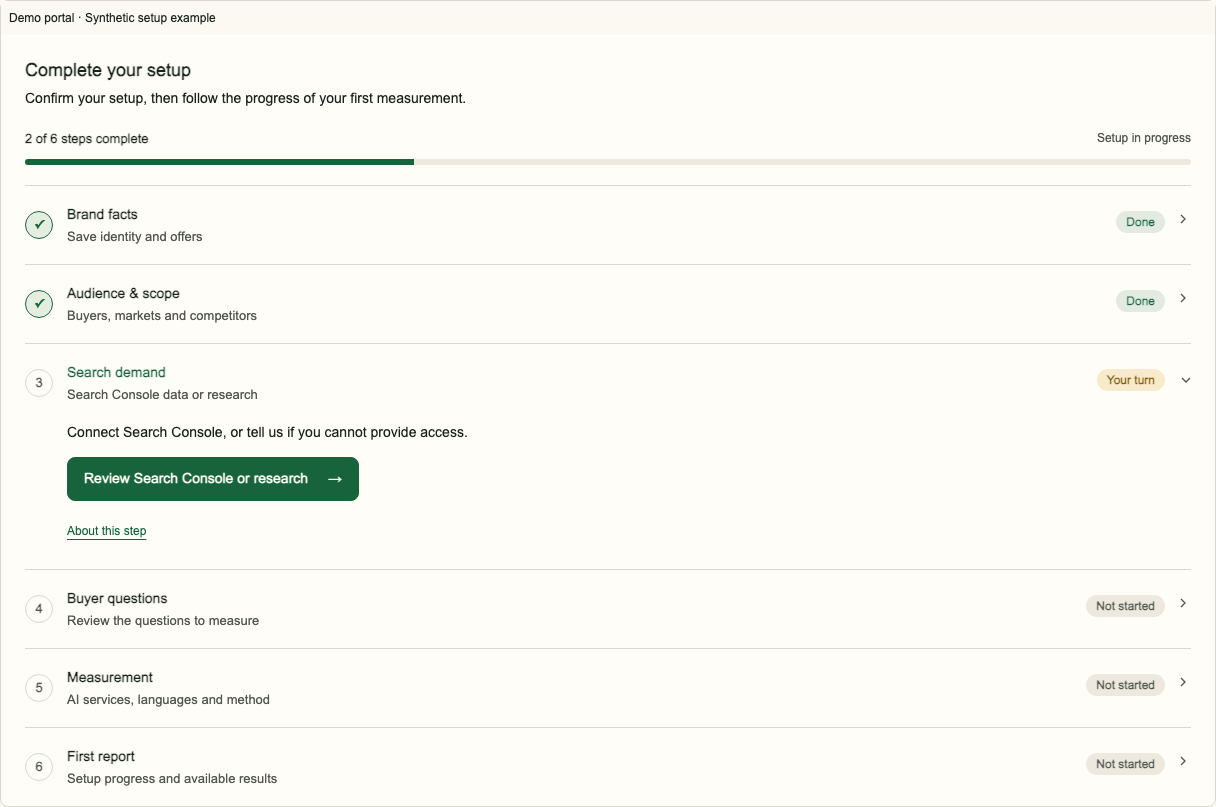
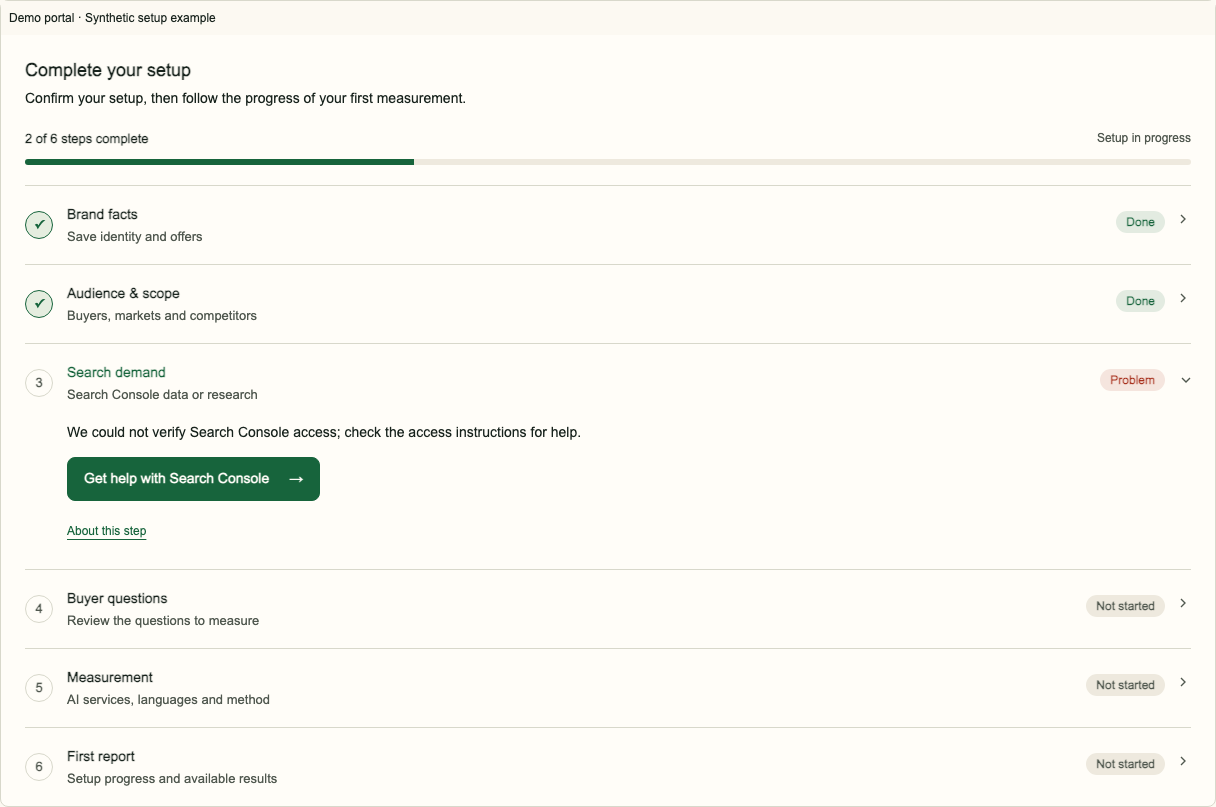
Resolve access problems
For a permission error, check that the displayed service account has the required property access. For a property error, compare the exact property identifier, protocol and domain with Search Console. After correcting access or the property, request another check. If the check still fails, write to support@creative-data-engineers.com with the brand, property and visible error. Do not send credentials.
Choose category research
If you cannot or do not want to provide Search Console access, select the research path in the account and confirm that choice. Category research can prepare buyer questions without observed search demand from your own site. It has lower confidence than a verified first-party demand source. Once the choice is saved, Search Console reminders stop.
The Google Search view will not acquire your site's observed clicks, impressions or queries through research. A missing Search Console report is not zero demand. If access becomes available later, revisit Search demand and verify it.
Frequently asked questions
Is Search Console required?
No. Confirm category research in the account if you do not provide access.
Does a requested check mean access works?
No. Wait for the verification result and check the property and checklist.
Does research show my own search traffic?
No. It does not provide observed Search Console demand from your site.