Edit the account name
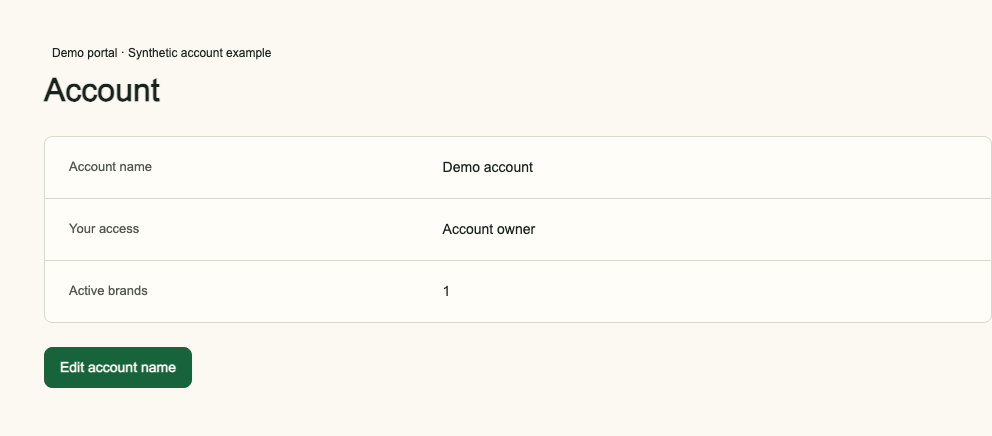
Open the account menu and choose Account settings. Account shows the account name, your role and the number of active brands. An account owner can choose Edit account name, enter a name the team recognises, then Save changes. Members can see the name but cannot change it. Your personal display label is separate from the account name.
Invite and manage your team
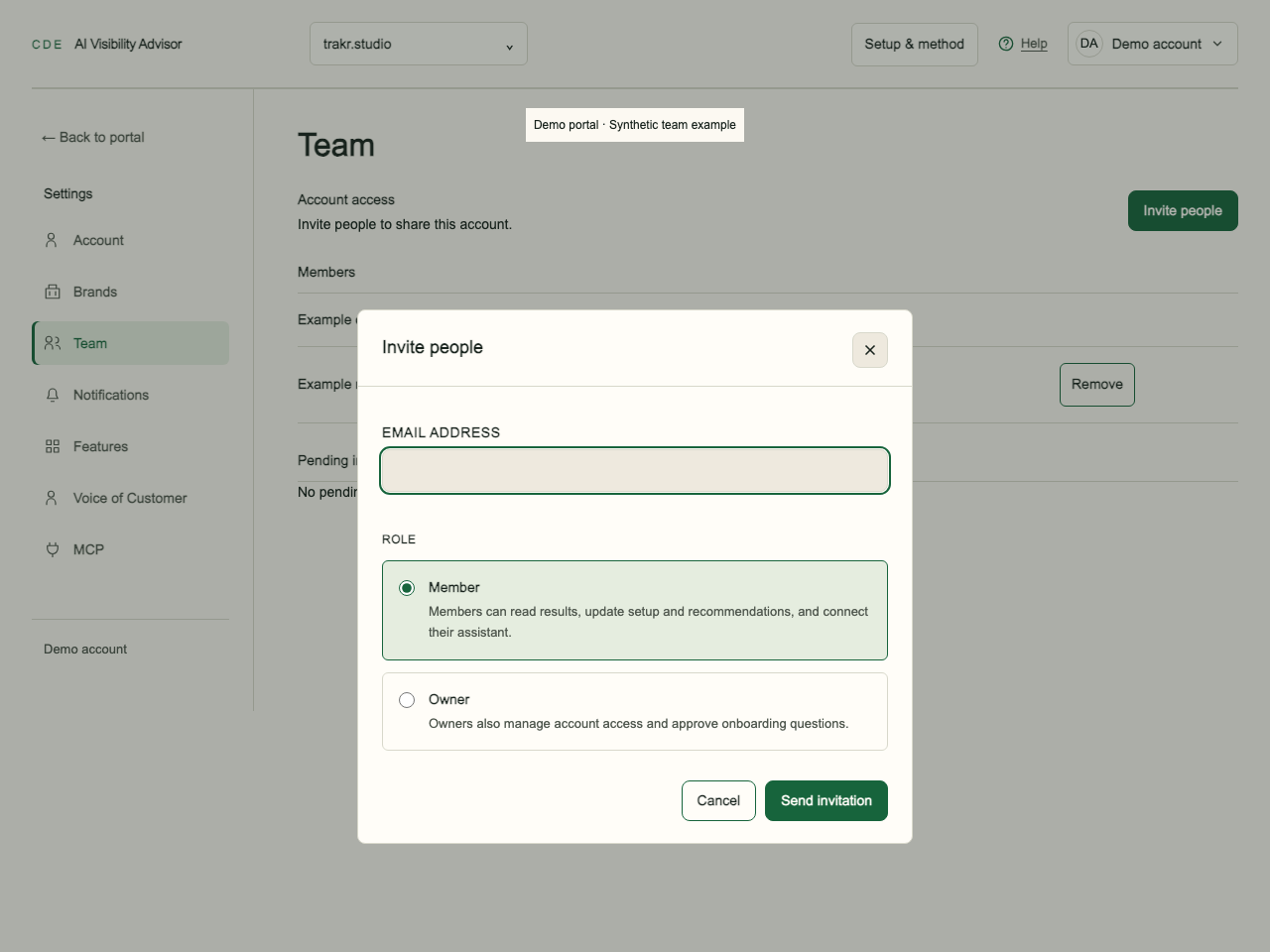
Open Team. An owner chooses Invite people, enters an email address and selects Member or Owner. Members can read results, update setup and recommendations, and connect their assistant. Owners also manage account access and approve the onboarding questions. The invitation is sent by email; the recipient signs in with that address and accepts or declines it in the portal.
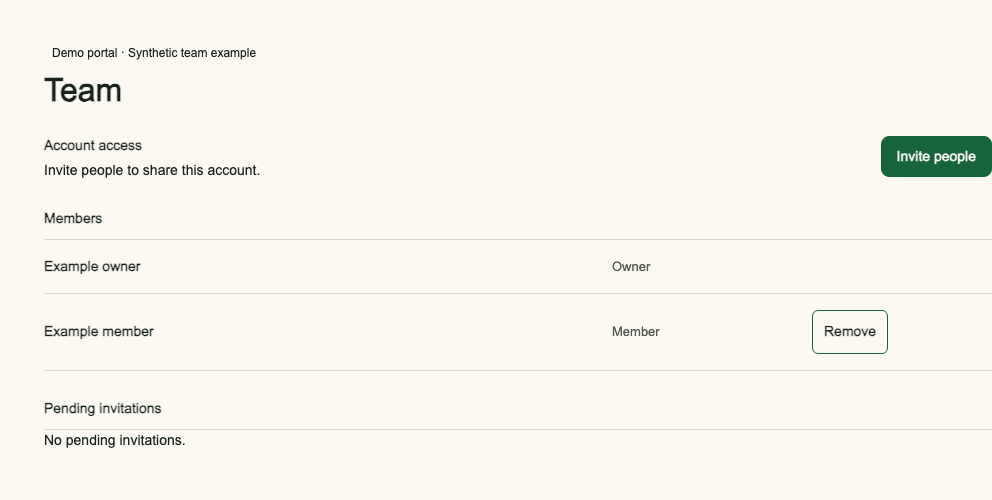
Owners can review pending invitations, resend or revoke them, and remove a Member. Removing a Member ends that person’s portal and connector access to the account. An owner cannot be removed from Team. A Member sees the list without management controls. Pending invitations expire after 7 days. The team can have up to 20 active or pending people. Resends require a 60-second interval and each invitation can be sent at most five times per day. If delivery is uncertain, check with the recipient before sending again.
Read notification status
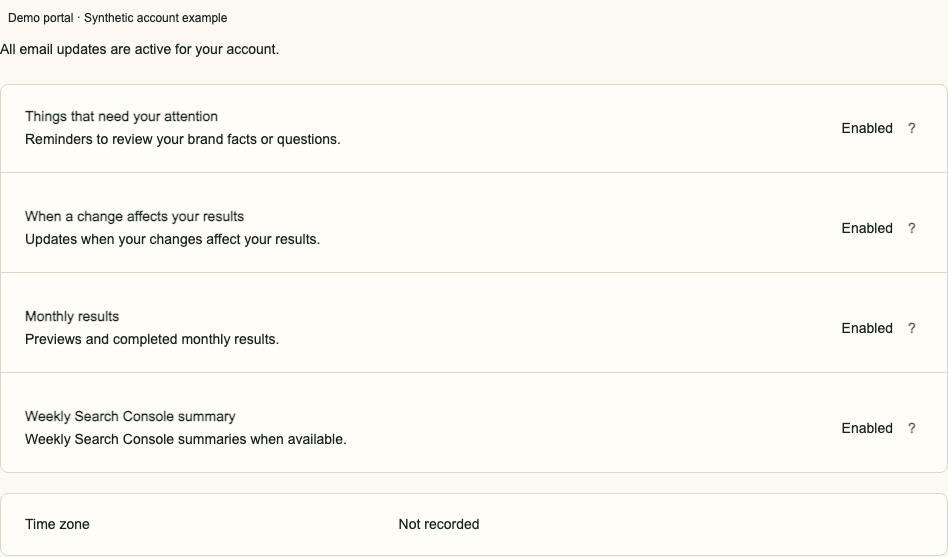
Notifications lists attention reminders, changes affecting results, monthly results and the weekly Search Console summary. These account updates are active with no customer on/off switch. Result emails go to account owners and members. The portal remains the source for current progress if an email is delayed.
Find brands, features and MCP
Brands lists the brands in this account and opens each brand’s setup. Features lists included capabilities. Voice of Customer has its own settings guide. MCP shows the public connector address and sign-in steps; read the connector guide. For invoices, write to support@creative-data-engineers.com.
Frequently asked questions
Who can edit the account name?
An account owner can edit it in Account settings. Members can read it.
Who can invite a teammate?
An account owner can send and manage invitations from Team.
What if an invitation does not arrive?
Check pending invitations and the recipient’s email address. If delivery is uncertain, check with the person before resending.