Open your invitation or create an account
The sign-in page offers Create an account. If you were invited to an existing account, use the invited email address and accept the invitation in the portal. You can set a password of at least 10 characters or add one later. The Help center is public; reports and account settings require sign-in.
If the address already has an account, for example because you were invited to a team, Create an account emails you a sign-in link instead. Your existing access stays unchanged. You can set or change your password in Account settings.
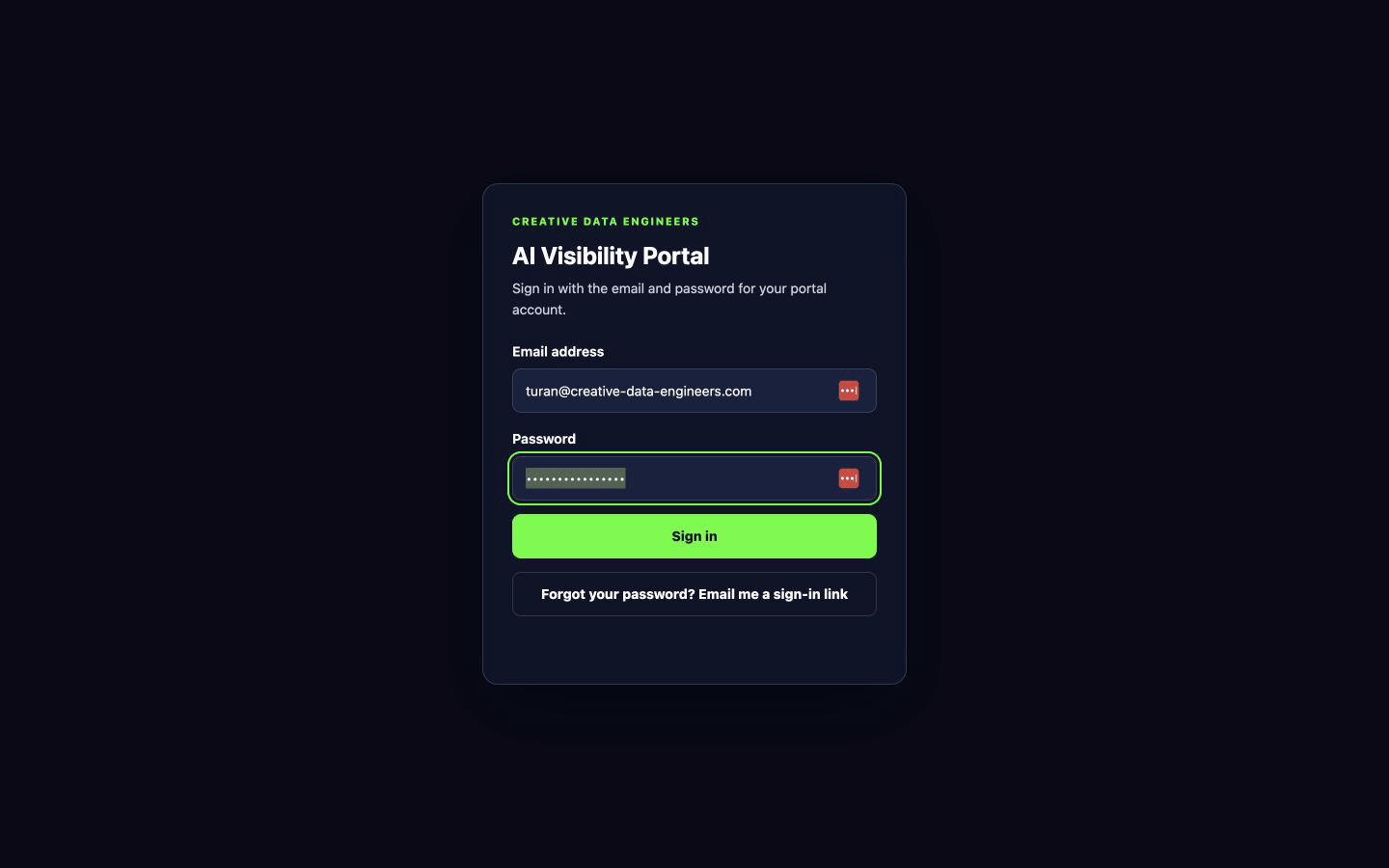
Sign in
Use your email and password, or request a sign-in email from the login page. Open only the newest email: a new request cancels earlier links. If access fails, request a fresh link and check your spam folder. Do not forward sign-in links.
Website and market
Step 1 of the eight steps in Overview offers two ways to set up your market. An account owner can copy the connector address and set up with their AI assistant, or choose Set up manually to enter a website, country and languages. Steps completed with your assistant show as done in the portal automatically. Read the connector guide.
Find your brand and controls
Choose the site in the header. Every report, document and setup step belongs to that selected brand. Help opens this guide. Setup & method opens your inputs and measurement settings. The account menu opens Account settings, Manage brands, Team and Notifications. On mobile, use the report selector and the header menu.

Start without report data
An account can be ready before its first report. The setup card at the top of Overview shows the current step and opens it. Start with Website and market. Set up with your AI assistant or here in the portal. Then work through Brand facts, Audience & scope, Search demand, Buyer questions, Measurement and First report. Your turn asks for an input; In progress means work is running. A missing report is not a zero score. Continue with onboarding.
Frequently asked questions
Who receives updates?
Result emails go to account owners and members. Invitation and access emails go to the addressed person.
Which sign-in email should I use?
Open the newest email. A new request cancels earlier links.
Why is there no report yet?
Complete setup and approve the questions once during onboarding. Measurement starts automatically, and monthly runs continue automatically. Later changes apply from the next run with trend markers, without renewed approval. Results appear after measurement starts.